
Windows 11 has a recommendation section on the Start menu. If you don’t like the recommended section on the start menu, Windows 11 allows disabling the feature that can help you unsee the start menu feature.
On Windows 11, the Start menu has been updated with a minimalistic design and traditional icons in place of Live Tiles. The “Recommended” section, which covers the place of the Timeline and includes recommendations to pick up recently opened files and installed apps, is one of the key components.
The ability to reopen recent documents and files is useful, but not the same for all to like the feature, because this could feel boring every time.
If this applies to you, it is impossible to disable the “Recommended” section of the Start menu, but you can get the closest by hiding every item you don’t want to appear in the list in the Windows 11 Settings app. The Start menu layouts can also be changed in the 2023 Update to display more pins and fewer recommendations.
You can follow the steps for the “Windows 11 turn off recommended” section from showing items in the Start menu.
How To Remove Recommended From Windows 11 Start Menu
Now, here are the steps on how to remove all the items in the “Recommended” section on Windows 11 from the start menu:
- Go to the settings option and open it.
- Then, click on the Personalization menu
- Now, click on the Start page on the right side.

- To reduce the number of recommendations and view more pinned apps, choose More pins from the “Layout” area.
- Then turn off the “Show recently added apps” toggle switch to hide the recently installed apps.
- In the next step, turn off the “Show most used apps” switch to hide frequent apps.

- Set the option to “Show recently opened items in Start, Jump Lists, and File Explorer” to remove recently opened files from the list.
Note: When you disable the feature, recommendations and the Recent Files part of File Explorer’s “Quick access” page will also be deleted.
Reopen the Start menu after you’ve finished the steps; the “Recommended” section should be empty. You’ll also have more room to display more pinned apps.
How do we Remove Recommended Items Individually From the Start?
Follow these steps to remove particular items from the Start menu’s Recommended section:
- Got to the start menu and opened it.
- Right-click an item from the Recommended section.
- Then select the Remove from list option.
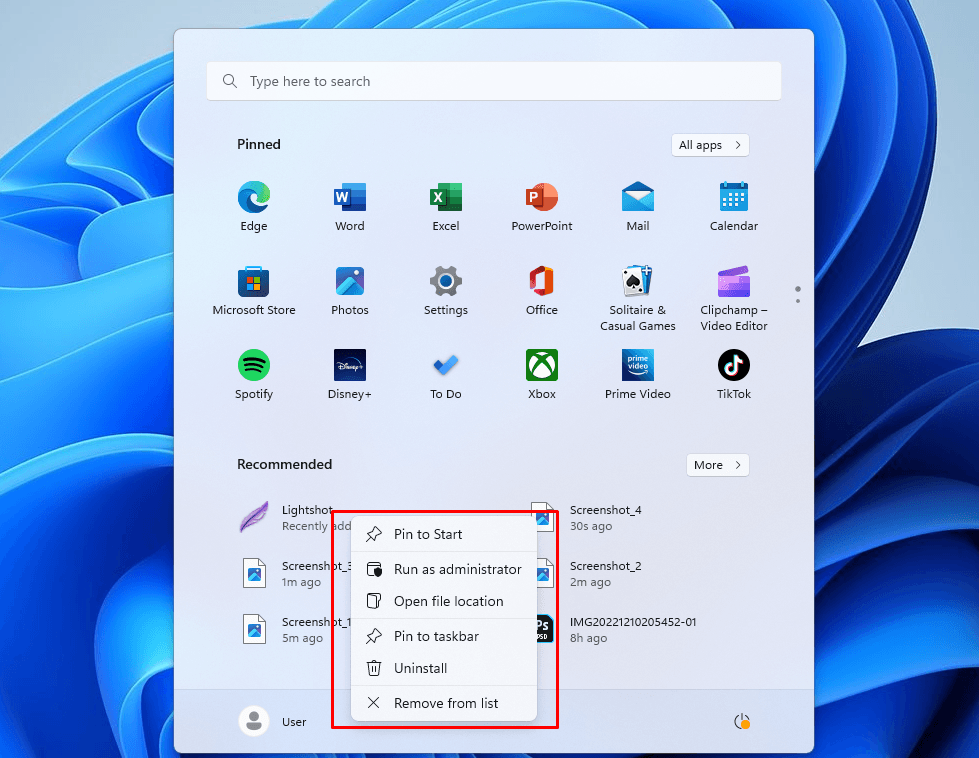
After completing the steps, the item of the start recommendation will no longer be available in the list. But you can still find the item at the local location.
If you have a lot of goods, you will see a More button to view the list in the top-right corner. Additionally, you can remove items from that list by right-clicking them as necessary.

Leave a comment